
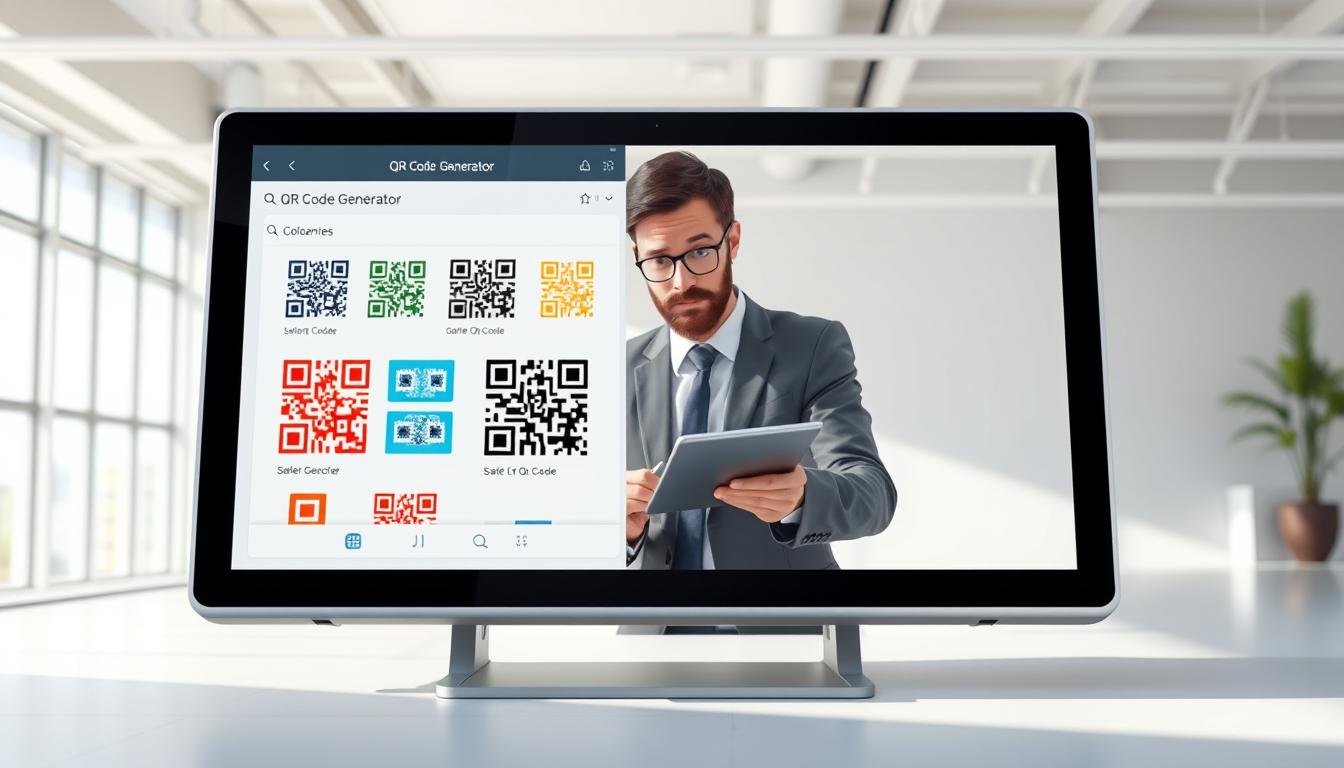
Hey there! You’ve probably noticed those square barcodes popping up everywhere lately. They’re on restaurant tables, product packaging, and even business cards. But have you ever wondered how they work? Well, a code generator is an online tool that takes the information you want to share and turns it into a scannable image. And guess what? You don’t need any tech skills to use it!
These tools have become super popular because they’re free, fast, and allow anyone to create a code in under a minute. In this guide, I’ll walk you through everything from understanding these codes to creating your own. You’ll even learn how to customize it with colors and logos, avoiding common mistakes along the way.
Whether you’re a small business owner, a marketer, or just curious, this guide is perfect for beginners. By the end, you’ll feel confident using a code generator to share links, PDF menus, or contact details without anyone having to type anything. Plus, modern generators like QRCode Monkey and TQRCG offer high-resolution downloads, so your codes will look great on anything from flyers to billboards!
Key Takeaways
- Code generators transform information into scannable images.
- They’re user-friendly and require no tech skills.
- Creating a code takes less than a minute.
- Customizable options are available for branding.
- Codes generated are high-resolution and don’t expire.
Understanding QR Codes and Why They Matter
Have you ever seen those little square patterns and wondered what they really do? The term QR stands for Quick Response. It’s a type of barcode that can hold much more information than the old-school stripes you see on cereal boxes. Invented by Denso Wave in 1994, these codes have become essential in our daily lives.
So, how does it work? Each black and white module in a QR code encodes data that your phone’s camera can read in a split second. Nowadays, most smartphones come with built-in scanning capabilities, meaning you don’t need a separate app to scan them. Just point your camera, and voilà!
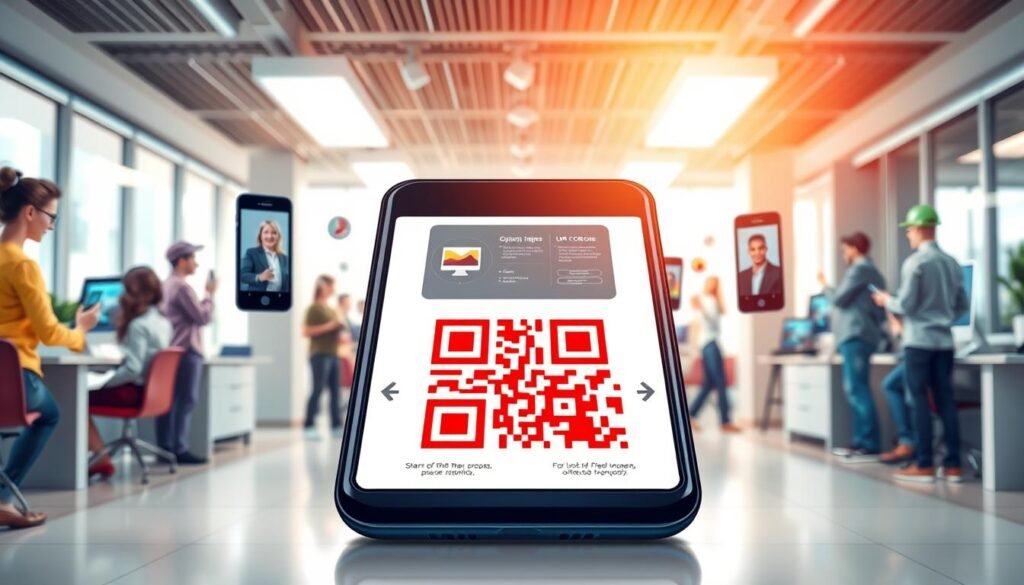
You’ve likely encountered QR codes in various places. Think about the sticker on your coffee shop table that links to the menu. Or consider the code on your concert ticket that provides instant access to event details. These little squares connect physical items to digital content, making information easily accessible.
Businesses have quickly adopted these codes for many reasons. They help reduce printing costs and allow for real-time updates. For example, a restaurant can change its menu items without needing to print new menus. Customers appreciate this touch-free experience, especially in today’s world.
QR codes can store different types of content. They can link to a URL, provide full contact details as a vCard, or even share a pre-written email. They can even hold your WiFi password! This convenience means no one has to type out a long web address on their phone. Just a quick scan, and they’re connected.
Another great feature is that QR codes can work offline for certain types of data. For instance, you can display a short message or share contact info saved directly in the code without needing an internet connection.
In recent years, QR codes have gained traction in various sectors, including restaurants, retail stores, and real estate. They solve real problems by providing a quick and efficient way to share information. They’re not just a tech gimmick; they’re a practical tool that benefits both businesses and everyday people.
For more in-depth information about QR codes, check out this Wikipedia article.
What Is a QR Code Generator and How Does It Work?
Let’s dive into how these handy tools turn your info into codes! A code generator is a simple web tool where you can type or paste your information. In just a few clicks, it spits out a downloadable QR code image. That’s really all there is to it!
The process starts when you pick what kind of content you want to share. This could be a website URL, text, or even contact details. Once you enter the specifics, the generator does all the encoding work behind the scenes.
One cool feature of these generators is error correction. This means that even if part of the code gets damaged or covered, it can still scan. You can even place a logo over a section, and it will work just fine!
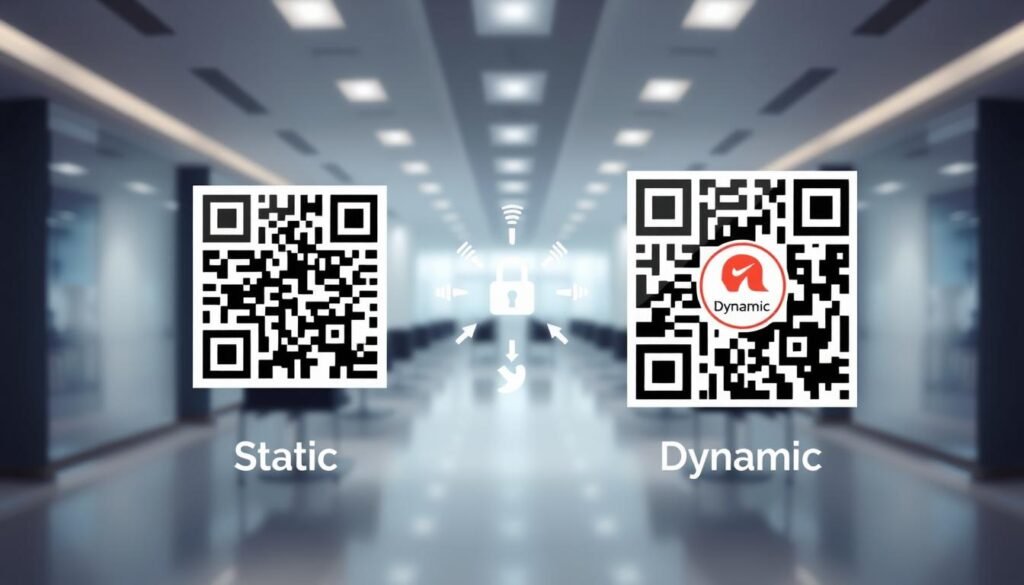
Most free tools create what’s called a static code. This means the information is baked in permanently and can’t be changed later. However, some generators, like TQRCG, offer dynamic codes. These allow you to update the destination URL anytime without needing to reprint.
It’s also good to know that your personal data stays safe. Tools like QRCode Monkey only cache the image files for 24 hours to keep things running smoothly. When you generate a code, the output is just an image file. You can download it in formats like PNG for digital use or SVG and PDF for high-quality printing.
Using a code generator is completely free, and there’s no software to install. Everything happens right in your browser! The whole process, from landing on the generator site to downloading your finished code, takes maybe 30 seconds once you know what you’re doing.
Don’t worry if you don’t understand the technical encoding stuff. The generator handles all of that automatically, making it easy for anyone to create their own QR codes!
| Feature | Static Codes | Dynamic Codes |
|---|---|---|
| Changeable URL | No | Yes |
| Scan Limits | No Limits | No Limits |
| Error Correction | Up to 30% | Up to 30% |
| File Formats | PNG, SVG, PDF | PNG, SVG, PDF |

Types of QR Codes: Static vs. Dynamic
When creating a QR code, you’ll face a key choice between two main types. Understanding these options can help you make the best decision for your needs. Let’s break it down into two categories: static and dynamic.
Static QR Codes: Simple, solid, and forever
Static codes are the set-it-and-forget-it option. Once you create one, the information encoded is locked in forever. This makes them perfect for things that won’t change, like a WiFi password or a plain text message. Tools like QRCode Monkey provide these static codes, ensuring they will work indefinitely without any modifications.
Dynamic QR Codes: Flexible, editable, and trackable
On the other hand, dynamic codes are like the smart, flexible cousin. They allow you to change where the code points to later without generating a new image or reprinting anything. This feature is especially handy for marketing campaigns or events where you might need to update links or track performance.
With dynamic codes, you can access valuable analytics. You can see how many people scanned the code, when they did it, what device they used, and even their location. Imagine printing 5,000 flyers with a dynamic code, only to realize the landing page URL is wrong. With dynamic codes, you simply update it online, and all those flyers still work!
For those interested in trying dynamic codes, TQRCG offers 2 free options that never expire, making it easy to experiment without spending a dime.
When to pick one or the other
Static codes make sense when you want to encode contact details on a business card or a PDF menu that won’t change. They’re straightforward and reliable.
Dynamic codes are worth considering for marketing campaigns, event promotions, or any situation where you might want to A/B test different landing pages or update offers seasonally. Most people start with static codes because they’re dead simple, then graduate to dynamic codes once they see the value in tracking and flexibility.
How to Create Your First QR Code Step-by-Step
Ready to create your first QR code? It’s easier than you might think! Let’s walk through the steps together so you can generate your own code in no time.
Choosing the type of content you want to share
First, open a free QR code generator like QRCode Monkey or TQRCG in your browser. You won’t need to sign up for basic codes, which makes it super easy!
Next, decide what type of content you want to share. This could be a website URL, a PDF document, your contact info, or even a plain text message. Just think about what you want people to access with a quick scan.
Entering your info: URLs, contact details, PDFs, and more
For a website URL, simply copy and paste the link into the generator. It’s that straightforward! The generator takes care of everything else.
If you want to create a vCard contact code, fill in the required fields like name, phone number, email, and company details. This way, people can save your contact info with just one scan.
There’s also an option to upload a PDF file, like a menu or brochure. The generator will create a code that lets people download it instantly. Other options include pre-filled emails, SMS messages, phone numbers that trigger a call, WiFi login credentials, and app store links.
Generating your code with a free tool
Before you hit that generate button, double-check your entered info for any typos. Remember, once a static code is created, the data is locked in permanently.
Now, click the generate or download button and choose your file format. PNG works great for digital screens, while SVG and PDF are better for printing. The whole process takes less than a minute, and you can create as many codes as you want for free!
Finally, test your newly created code by scanning it with your phone camera before sharing or printing it anywhere. This way, you can be sure it works perfectly!

Customizing Your QR Code: Colors, Designs, and Adding a Logo
Plain black and white QR codes are functional, but why not add a splash of personality? Customizing your code with colors and a logo makes it eye-catching and on-brand. Most free generators allow you to change the colors of the squares and the background. You can match your brand colors or pick something vibrant that stands out!
Moreover, you can play with the shape of the corner elements and the body pattern. For example, using rounded dots instead of sharp squares can soften the look. Gradients are another modern touch, making your code feel less like a generic barcode. Tools like QRCode Monkey support both radial and linear gradients for a stylish effect.
Now, let’s talk about adding a logo. Thanks to built-in error correction, you can cover up to 30% of the center with your brand’s logo, and it will still scan perfectly. Just be careful not to cover the three large corner squares, known as positioning patterns. These are essential for phone cameras to detect and orient the code.
Tools like TQRCG even let you upload your logo with the background removed, allowing it to blend seamlessly into your code design. Contrast is key; if your code is light blue on a white background, scanners might struggle. Always ensure the foreground is darker than the background for optimal scanning.
When it comes to file formats, PNG is great for websites and social media. However, for printing on flyers or packaging, opt for vector files like SVG or PDF. These formats won’t get blurry at any size. Using the real-time preview feature most generators offer lets you see how your customized code looks before downloading.
In summary, customizing your QR codes is not just fun but also enhances their effectiveness. So go ahead, get creative, and make your codes uniquely yours!
Where to Use QR Codes to Get the Most Out of Them
The versatility of QR codes allows them to fit seamlessly into various contexts. By strategically placing these codes, you can enhance your engagement and provide easy access to information. Here are some practical ideas to get you started.
On business cards for easy contact sharing
Start with business cards because it’s the most obvious win. Instead of cramming every social handle and phone number onto a tiny card, just put one QR code that shares your full vCard contact details. When someone scans the code on your card, all your info pops up on their phone. They can save it with one tap, no typing required!
Marketing materials like flyers, posters, and packaging
Next, consider adding a code to your marketing materials. A flyer or poster with a QR code turns a passive piece of paper into an interactive gateway. It can lead to your website, a special offer, or a signup form. Additionally, product packaging is an underrated spot. A code on the box can link to assembly instructions, recipe ideas, or a video showing the product in action.
Event tickets, menus, and customer feedback
Event tickets are another excellent place for QR codes. They make check-in fast and contactless. Plus, they can hold all the event details like schedule and venue map. In restaurants, placing codes on tables replaces sticky laminated menus. Customers can order, pay, or leave feedback without flagging down a server.
Email signatures also offer a clever digital placement. A small code in your footer lets recipients book a meeting or follow your socials instantly. Remember, for printed codes, size matters. Keep it at least 1 x 1 inch in size with adequate quiet zone around it. The best placement is wherever your audience already is and where a scan saves them time or effort compared to typing something out.
Pro Tips for Making Your QR Codes Scan-Friendly
To ensure your codes work perfectly, let’s explore some expert tips for making them scan-friendly. Following these strategies can save you from common pitfalls and enhance the user experience.
Keep enough contrast and clear backgrounds
Contrast is key. If your code blends into the background, phone cameras can’t pick it up. Always ensure the dark parts are properly dark. A high contrast between the code’s foreground and background will make scanning effortless.
Additionally, maintain a clear background. Avoid busy patterns or colors that might confuse the scanner. A solid color is often the best choice.
Choosing the right size based on where it’ll live
The size of your code matters greatly. A code on a business card can be small, but one on a billboard needs to be larger for effective scanning. For every 10 feet of viewing distance, the code should be at least 0.8 inches wide. For example, a code on a poster viewed from 5 feet should be about 2 inches across.
Also, keep in mind that the minimum print size should be at least 1 x 1 inch or 2.5 x 2.5 cm. This ensures clarity and prevents any scanning issues.
Testing your QR Code before printing or sharing
Testing is the most important step. Scan your code with various devices, like an iPhone and an Android, in different lighting conditions. This helps ensure it works everywhere.
Try different scanner apps too. Not all apps handle vCard codes or large amounts of data the same way. If you added a logo, test it carefully as well. Sometimes the logo placement can interfere with scanning, even if the generator indicated it was fine.
For digital codes displayed on screens, ensure the resolution is high enough—at least 300 by 300 pixels. This prevents any fuzziness that could hinder scanning.
Remember, a few minutes of testing can save you from printing hundreds of useless codes that nobody can scan.
| Tip | Details |
|---|---|
| Contrast | Ensure a dark foreground against a light background for easy scanning. |
| Size | Minimum size should be 1 x 1 inch; adjust based on viewing distance. |
| Testing | Scan with multiple devices and apps to ensure compatibility. |
| Logo Placement | Check that logos do not obstruct key scanning areas. |
Common Mistakes to Avoid When Creating QR Codes
Creating a QR code can be a breeze, but it’s easy to make some common mistakes. Let’s explore these pitfalls to help you create codes that work every time.
Check your URLs and data for typos
One of the most embarrassing mistakes is a typo in the URL. Imagine sending people to a broken page! Always copy and paste links directly instead of typing them out by hand. This simple step can save you from frustration.
Don’t over-design or cover important parts
It’s tempting to go wild with colors and patterns. However, if you cover the three corner squares or make the contrast too low, the code becomes a pretty decoration that doesn’t actually work. Keep it simple and functional.
Avoid too small or blurry QR Codes
Size matters! A code that looks fine on your computer screen might be unreadable when shrunk down on a business card. Ensure your codes are at least 1 x 1 inch for print. Also, if you stretch a low-resolution PNG to fill a poster, the fuzzy edges will confuse scanners.
For dynamic codes, remember that changing the destination URL to something that doesn’t exist can break the link. Expired dynamic codes can also be an issue, so keep track of your subscriptions.
Some vCard codes can act weird because not all phone scanner apps follow the same standard. Test your codes on multiple devices to ensure compatibility.
Finally, if a code isn’t scanning, temporarily remove the logo to see if that’s the culprit. Most mistakes are easy to fix if you catch them early, so always test before you commit to printing hundreds of copies!
Taking Your QR Code Game Beyond Basics
Congratulations on mastering the basics; now it’s time to elevate your QR code strategy. Think beyond simple links and consider how you can use dynamic codes to track scan analytics. Knowing where and when people scan gives you real data about what’s effective.
Imagine using multi-URL codes that direct iPhone users to the App Store and Android users to Google Play. You can also customize content based on the time of day! Adding UTM parameters to your URLs helps track how much traffic your printed flyers or product packaging drive.
For businesses needing multiple codes, bulk creation allows you to generate dozens at once. Team collaboration features enable seamless management across your organization. Plus, you can update dynamic code destinations anytime, perfect for seasonal promotions.
Some businesses even integrate scan data with their CRM to see which offline materials lead to customer engagement. With paid plans starting at just $5 per month, platforms like TQRCG offer advanced features like higher resolution downloads and ad-free experiences. So go ahead, experiment! The barrier to entry is low, and there’s no reason not to try new placements to see what resonates with your audience.